

Navionics+ Blank Large Micro-SD/SD Chart (Product Code 010-13224-00)
Navionics+ Blank Large is a downloadable electronic nautical chart designed for use exclusively on a 32GB Micro-SD/SD card modified by Navionics. Before use, the chart must register after you have selected and downloaded a suitable area for oneself. NB! The area cannot be changed later, be careful when choosing.
Since the card's registration, the user has One year of free map updates This ensures the freshest navigation information. This chart is compatible with many Navionics-enabled chartplotters and is ideal for both recreational and professional mariners.
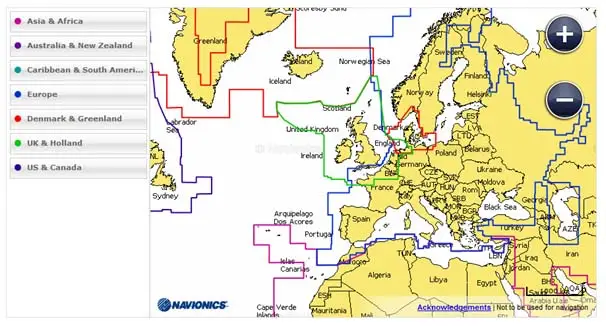
Below you can download almost all regions that Navionics offers. The regions are very similar to the former Navionics+ XG regions, plus sonar charts for your chosen region and points of interest in that area. RECOMMENDATION: Never download a chart with all the extras that Navionics offers to older chartplotters if you don't actually need them. Instead, download only the necessary information that you require and that is feasible for your chartplotter. The chart will certainly not become faster due to its larger size. When updating the chart, you can also upload your own sonar logs saved with your fishfinder and share them with others. The Navionics+ marine chart allows Raymarine a, c, e, eS, gS, and new Axiom series chartplotters to use the “Auto Route” function, which automatically displays a safe route between your start and destination points for your vessel. (Auto Route may not work in every situation; it all depends on the detail of the chart in that region).
Once you have purchased a downloadable Navionics+ marine chart, you will need to download the desired region yourself and activate the marine chart. The marine chart will be linked to your Navionics account email. If you already have an account on your smart device, please use the same account. To perform the necessary steps, download Chart Installer and read the chart user guide. Next, follow the instructions on the screen exactly! It is very important that you enter a working email address, as you will be notified before the card expires and can still download updates for free. In case of errors, ensure that your internet connection is working, that your computer is up-to-date, that your computer is free of viruses or malware, and that all updates have been installed. NB! Please do not put this card into a smart device, do not delete anything from this card, and do not format this card. If you still cannot get it to work, please call and ask for help: +372 508 8768.
If you are worried about being in difficulty and would like us to download the map and deliver a ready-to-use map to you, then please select from the dropdown menu that you wish to have the downloaded map. NB! The download service fee is €25. Please write in the additional information box in the shopping cart which area we should download and which chart plotter it should be optimised for (manufacturer and model number).
Please ensure that before buying a new graphics card Navionics chart plotter fit your chart plotter.
NB! Before purchasing a new graphics card, please ensure Is your chartplotter capable of reading 32GB memory cards.
NB! Before purchasing a new graphics card Ensure your chartplotter has the latest available software and update it if necessary.
Get acquainted with precise instructions how to register and download the map.
Electronic sea charts cannot be returned!
NB! Important announcement.
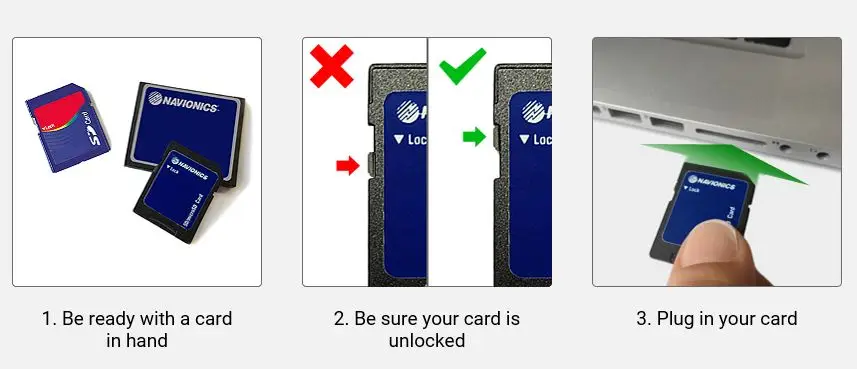
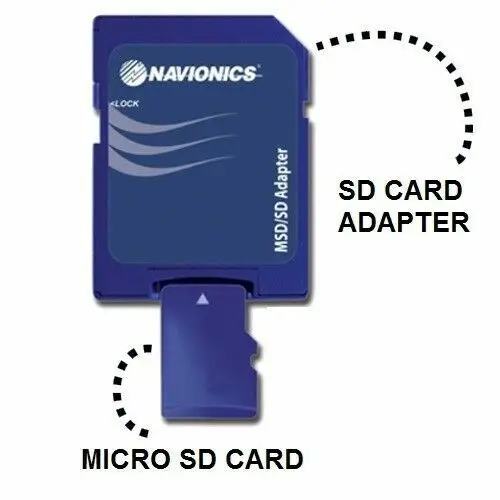
Dear new electronic sea chart owner. If you ordered an mSD card, then your new sea chart package includes an SD adapter and the mSD card may be inside it. In this case, you need to remove the mSD card from the SD adapter!
I feel very strange writing the following lines, but society is probably at such a point in its development. Frankly, things like this make one seriously contemplate existence and sustainability. Strangely enough, a tiny detail has become a big problem these days: the mSD card is in an SD adapter at the time of delivery. If the plotter has an mSD card slot instead of an SD card slot, then pulling the mSD card out of the SD adapter and inserting it into the plotter seems to be an incredibly difficult operation. In the last ten years, there was one such incident, but in recent years there have been dozens of them, mostly with a lot of shouting, arguments, and profanity. A new card owner, who doesn't think for themselves but immediately calls and writes everywhere, is very demanding towards everyone except themselves. They always call immediately, regardless of the day or time. It doesn't matter if it's Friday evening around ten o'clock or Sunday morning at eight, and they start scolding without further ado, or asking clarifying questions about the matter. They were sent the wrong thing, they have been severely deceived, and now they are complaining to consumer protection, calling the press, writing about it on FB, and if the situation doesn't improve immediately, they have other options for people like us in store. Very often, they also mention how many degrees they have and add that “I'm not stupid, I'm very familiar with IT matters.” Well, so be it, because education does not yet guarantee I've added a small picture to alleviate this technically and psychologically complex and exhausting situation. I hope the attached picture will make things clearer for all “victims of deception” and encourage them to try this magic trick themselves. Clicking on the picture opens video This whole difficult and complex operation is well-followed. If necessary, you can rewind and review the more complicated parts again. And if even after that you cannot manage to pull the mSD card out of the SD adapter, please call us on working days, without any threats, between 09:00 and 17:00, and we will guide you until the card is successfully inserted into the plotter.
Another everyday „problem“ from the same category“
Hello, hello, it seems my plotter no longer shows the sea chart. Everything was fine at the harbour in the autumn.
Before you call with such a problem, please check three simple things yourself.
First question What we are asking is whether the appropriate setting has been made on the plotter to use Navionics nautical charts.
The usual answer is that they haven't chosen and sometimes they say that they have already set the correct plotter when updating the map on the computer, what else is needed.
Explanation: When loading nautical charts on a computer, selecting your plotter does not force your plotter to use Navionics nautical charts; this selection must be made in your chart plotter's menu. In the Chart Installer computer program, this selection is to ensure that the chart is optimised according to the capabilities and features of the chart plotter you have selected when downloading. Modern chart plotters read nautical charts from various manufacturers, and if the corresponding selection is not made in the plotter or the wrong chart is selected, the plotter will not be able to display the chart.
Next question What we're asking is, are you definitely by the sea or an inland body of water which has a chart of it in your plotter?
Explanation: Sometimes people have multiple sea charts and the plotter simply has the wrong area chart.
The third question Is it that you're definitely by the water's edge or did you start the plotter in your back garden?
Explanation: A nautical chart, as the name suggests, is literally a map of the sea and body of water. If you brought your boat ashore for winter storage under a shed, then this area's land map is most likely not on the plotter. In the event that you are by a body of water and do not have a map, then check if this body of water is even on Navionics charts and mapped. The Navionics On-Line chart viewer can help you get an overview of mapped areas:
https://maps.garmin.com/et-EE/marine
One thing is also likely to become a daily „problem“.
Hello… I can’t see my fishing net on the Navionics chart, nor can I see my neighbour’s! We put the nets in a week ago and still nothing. This morning, I specifically downloaded the nautical chart updates, but the net is nowhere to be seen. How can such a simple thing take so long, I don’t understand what kind of chart update this is?
Explanation: Nautical chart data originates from public databases, and the data displayed is issued by the state. Although fishing nets appear to be important and must be marked with flags, they are not considered aids to navigation or other charted objects and are not displayed on nautical charts.
Alright, but the sonar log doesn't show anything either. I uploaded it, but there's nothing.
Explanation: It's a bit trickier with your own uploaded sonar log data, and they really don't appear on the chart immediately. In order for contour lines from your logged data to appear on a Navionics nautical chart, one or two uploads in that area aren't enough. The logic is that if sonar logs from tens of different users are uploaded in the same area, Navionics reviews it and calculates an average result from those logs. Based on these calculations, the relevant changes are eventually made to the charts, and all users can download them. Since there aren't many fishermen who want to show their fishing spots to others, you can't really expect logs from those spots either.
General recommendations for using SD/mSD memory cards.
1) Avoid static electricity charges; never hand a memory card to another person by holding it between your fingers while they take it. You have likely experienced a “shock” when touching an object or another person. This same “shock” is the result of the contact of different charges. If this happens when handing over a memory card, it is highly likely that the memory card will be useless thereafter; it will simply be a piece of plastic and silicon that looks like a memory card but is no longer recognised by the plotter, but by the computer. Before handing over the memory card, touch another person's hand with your own first.
2) Never remove the memory card from a working plotter without using the dedicated function “Eject SD card”.
3) Before removing the memory card from the plotter, hold the device with your other hand. This is necessary to prevent even the smallest static electric charge from occurring when touching the memory card, which could damage it.
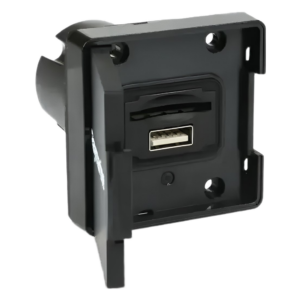
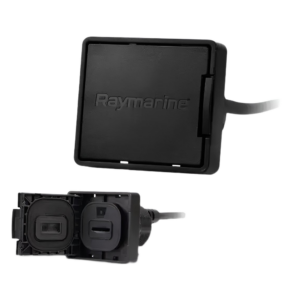
4) Plotters with an mSD card slot on the back and a flush-mounted installation on the dashboard can make accessing the memory card difficult. In this situation, you must be particularly careful when removing the card, as the tiny mSD card can also be physically damaged. For flush-mounted installations, it is advisable to add to the Axiom and Axiom+ chartplotters card reader device A thousand Saab can be installed in an easily accessible place.
| Weight | 0,1 kg |
|---|---|
| Dimensions | 15 × 11 × 2 cm |
| Make a choice | Large Blank, Downloaded map |
You must be logged in to post a review.


 Eesti Eesti
  English (UK)
 Suomi
Suomi
 Русский
Reviews
There are no reviews yet.